How to make a resume in Word: what to do, what to avoid, and when it is not worth it

You can make a good resume in Word if the document is simple, well structured, focused on useful content, and exported correctly. The problem is not using Word. The problem is assuming Word will make the decisions that actually affect resume quality: what to include, what to prioritize, how to organize the information, and what type of job application the resume is meant to support.
Making a resume in Word, then, does not start with finding a template. First, you decide how you want to position yourself and show your fit for the role. Then comes Word, or whichever tool you use to turn that decision into a resume.
In this guide, you will see:
- How to make a resume in Word with a clear strategy.
- How to choose a Word resume template that does not limit your chances.
- What makes many resumes made in Word look fine but perform poorly in real hiring processes.
- When to send your resume as a Word document or as a PDF.
- When it makes more sense to use a specialized resume builder.
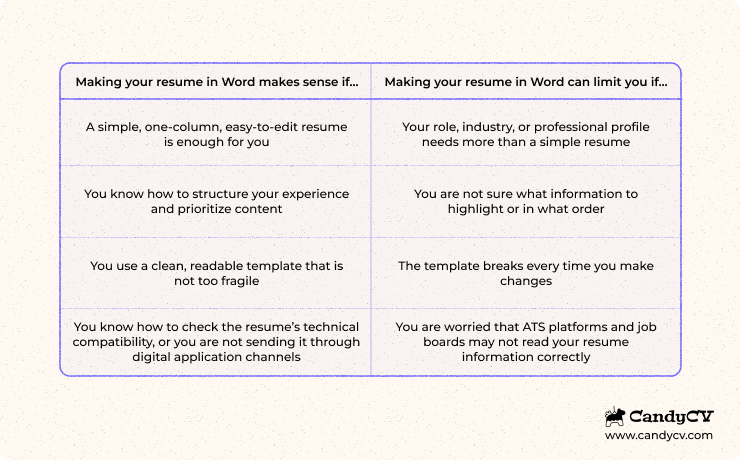
Word gives you control, but it also leaves you alone with decisions that certain specialized tools may guide better: structure, visual hierarchy, tailoring your resume to job postings, editing and maintaining the document, and technical compatibility.
If you want to place Word within the full map of options, you can read this guide on types of tools to create a resume.
How to make a resume in Word with strategy, not just a template
Making a resume in Word is not about finding a template, filling it in, and adjusting spacing until it looks finished. That process can produce a document that looks visually acceptable but is fragile: hard to edit, uncomfortable to tailor, and unreliable when you export it or upload it to a job application.
To use Word with strategy, review three layers:
- First, whether the content responds to the type of role you are targeting.
- Second, whether the template respects that content instead of forcing it into an awkward structure.
- Third, whether the file can be edited, exported, and read without the structure breaking.
| Criterion | Control question |
|---|---|
| Resume focus | Does the resume make it clear what kind of role you fit and why? |
| Template | Does the design force you to cut, move, or compress important information? Does it let you reorder sections easily? |
| Content priority | Do your strongest fit signals appear early? |
| Sections | Do the sections you completed actually help explain your profile, or did you fill them in only because the template included them? |
| Editing | Can you add, remove, or edit information without breaking half the page and wasting time fixing the layout? |
| Visual elements | Is the important information written as text, even if the resume uses icons or visual elements? |
| Export | Does the final PDF preserve margins, page breaks, order, and readability? |
| Technical compatibility | Does the information work correctly in digital application environments such as job boards and ATS platforms? |
What you should decide before opening Word
Before choosing a template, decide what the resume needs to solve. Word lets you arrange sections, change font sizes, and move content around, but it cannot decide for you what professional profile you want to present or which information deserves the most weight.
At minimum, before opening Word, decide:
- What type of role the resume is targeting.
- Which work experience, education, projects, or achievements should support that goal.
- Which sections are essential and which would only add noise.
- In what order the information should be read so the profile is understood quickly.
- Whether you need a base resume or a version tailored to a specific job posting.
- Which older tasks, secondary details, or low-value information do not deserve space.
This step prevents one of the most common mistakes when making a resume in Word: letting the template decide what matters. If the design forces you to prioritize information in a way that works against you, compress relevant content, or fill in sections that add nothing, you have a positioning problem, not just a formatting problem.
How to choose a Word resume template that does not limit your resume
A good Word resume template is not necessarily the most boring one. It is the one that lets you present information clearly, edit the content without breaking the layout, and export a stable final version.
That is why, if you are going to make your resume in Word, it is usually safer to choose a one-column template. The reason is simple: many two-column resume templates in Word are built with tables, text boxes, or rigid blocks. Visually, they can look organized, but they are often much harder to edit, and the final PDF may not match the document you were editing.
The template should adapt to the resume, not the other way around. If the design forces you to cut important information, highlight secondary sections, or rebuild the formatting every time you edit the content, that template is shaping the success of your application in the wrong direction.
This does not mean a two-column resume is always a bad idea. For some profiles, it can improve readability, separate secondary information more clearly, or fit the role, industry, or application style. The problem is using Word to force a structure it does not handle well.
When choosing a Word resume template, pay special attention to whether:
- Section headings are clear and recognizable.
- The main text can be selected, copied, and edited normally.
- The template is not built with text boxes, invisible tables, or floating blocks.
- Important information does not depend on icons, bars, charts, or visual elements.
- You can add, remove, or reorder information easily without breaking the whole page or wasting time fixing the layout.
- The design does not force you to compress content just to preserve the template.
- The exported file preserves margins, page breaks, order, and readability.
How to know whether a resume made in Word can be read well by ATS and job boards technology
A resume made in Word can be read correctly by ATS platforms and job boards if it is built well. The problem is not Word itself. The problem is certain formatting decisions that can make the document harder to read or parse: text boxes, icons used as content, complex tables, or a final export that changes the document structure.
As quick criteria, choose one-column templates when working in Word, check that the text can be selected, make sure sections are recognizable, keep important information written as text, and review whether the final PDF preserves the order and readability of the document.
Common mistakes when making a resume in Word: why some look well formatted but fail in practice
The problem with many resumes made in Word is not that they look bad. Sometimes the opposite happens: the template looks tidy, the design fits, and the document gives the impression that the resume is finished. The issue appears later, when you try to update it, tailor it to a job posting, export it to PDF, or upload it to a job board.
These are the most common mistakes to review before assuming a resume made in Word is ready:
| It looks correct because… | But it fails because… | How to fix it |
|---|---|---|
| The template looks attractive | The design may be controlling the content: highlighting decorative elements, reducing space for what matters, or making edits difficult | Use a cleaner structure and check that key information is read before visual elements |
| Everything fits on one page | To make that happen, you may have compressed experience, achievements, or context that helps explain your fit | Prioritize based on the role. A two-page resume is better than removing important fit signals just because they do not fit |
| It uses icons for contact details, languages, or skills | If information depends on the icon, it may lose clarity or stop making sense outside the design | Keep important information written as text |
| It looks good inside Word | When exported, margins, page breaks, spacing, or element positions may change | Always review the exported version, not only the editable document |
| The template includes many sections | It may push you to add sections that do not help or give secondary information too much weight | Keep only the sections that help explain your profile |
| The design looks professional | It may be hard to read if it uses too little spacing, small font sizes, or unclear visual hierarchy | Make sure the resume can be read quickly without zooming in, decoding icons, or reconstructing the order |
What to do if you already have a resume made in Word
If you already have a resume in Word, you do not need to rebuild it from scratch automatically. First, identify whether the problem is the content, the template, or the file itself.
If the content is strong and there are only small formatting issues, you can fix the document in Word. But if the template shapes what you can say, breaks when you edit it, or makes it hard to maintain several versions, it may be more efficient to rebuild the resume in a tool designed specifically for resumes, such as CandyCV.
Word resume or PDF resume? What format to use for editing, sending, and saving your resume
The most practical approach is to separate the editing file from the delivery file. You can use Word to edit your resume, but in most cases it is better to send a final PDF version unless the employer, job posting, or application platform specifically asks for another format.
Word or .docx makes sense while you are building the document, making changes, or sharing it with someone who needs to edit it.
PDF makes sense when you want to send a final, more stable version that is less exposed to formatting changes across devices, programs, or software versions.
The important thing is not to confuse file format with technical quality. A resume in PDF is not automatically ATS-friendly, just as a resume in Word is not automatically better for a hiring system. What matters is how the document is built.
When it is worth using a specialized resume builder instead of Word
Word is not designed to solve the most important parts of creating a resume: defining your focus, prioritizing what to include, positioning your narrative, working well with recruiting technology, or making resume tailoring and version management easy and fast. Unless you already know how to handle all that yourself, Word is not the best option for creating a resume.
Word starts to fall short when:
- You need help defining your focus and choosing what to include and how to explain it.
- Every update makes you lose time fixing formatting.
- You want to tailor your resume to several specific job postings and need guidance and flexibility.
- The template includes sections you do not need and is difficult to change.
- You do not know which elements make a resume ATS-friendly and job-board friendly.
- You rely on copying and pasting AI-generated text without checking whether it actually fits your profile.
In those cases, we recommend using a tool designed specifically for resumes. It reduces friction and keeps the tool from distracting you from what matters: building a clear, updated resume oriented toward the type of role you want to get. Here is our selection of the best online resume builders.
Next step: stay in Word, change template, or use a specialized resume builder
If, after reviewing your resume, Word still clearly works for you, do not overcomplicate it. Use a clean template, keep the structure simple, save an editable .docx version, and export it to PDF when you need to send it. Look for a template that adapts to the content, not one that forces you to cut important information, move sections around, or fight with formatting every time you update a role.
If Word is already limiting you in any important area, it makes sense to move to a tool designed for resumes. In CandyCV, you can create an editable resume, choose templates designed to adapt to the content, and download a final PDF without relying on tables, text boxes, or manual layout fixes. You can start by uploading your current resume and automatically importing its information into the new one.
Frequently asked questions about making a resume in Word
Is it bad to make a resume in Word?
No. Making a resume in Word is not bad if you know how to focus your profile, select relevant information, organize your experience, and use a clear, editable, technically reasonable template. Word can work when you already know how to build the resume. What it does not do is help you decide what to include, what to prioritize, or how to tailor your application.
The problem appears when Word is used as if the template solved the resume. An attractive design does not guarantee that the resume is well positioned, easy to read, easy to update, or reliable when exported and sent.
Is it better to make a resume in Word or PDF?
Word and PDF do not serve the same function. Word or .docx usually makes sense for editing the resume, making changes, or sharing it with someone who needs to revise it. PDF is usually better for sending a final version because it preserves the layout more reliably and reduces accidental formatting changes.
The exception is the instruction in the job posting or application platform. If they ask for Word, send Word. If they only accept PDF, send PDF. The important thing is to always keep an editable version and review the final file before submitting it.
Are Word resume templates ATS-friendly?
Some Word resume templates can work well in ATS platforms and job boards if they are built with selectable text, recognizable sections, logical order, and a clear structure. But not all Word templates are equally reliable. Some depend too much on text boxes, complex tables, icons, rigid columns, or visual elements that can make the resume harder to read or parse.
The key is not whether the template was made in Word, but how it is built and how the final file behaves after export. To review this in more detail, use this guide on how to check if your resume is ATS-friendly in a realistic way.
Can I make a resume in Word for free?
Yes, you can make a resume in Word for free if you already have access to Word or use an online version available to you. You can also start from a free template and edit it manually.
The real cost usually appears later: choosing a suitable template, adjusting the layout, fixing formatting problems, maintaining several versions, tailoring the resume to different job postings, and checking that the final PDF looks right. If you already know how to build your resume and only need to edit it, Word may be enough. If you need guidance, structure, or easier maintenance, a specialized tool like CandyCV may help more.
What alternative is there to Word for making a resume?
The most direct alternative to Word is a specialized resume builder, especially if you need compatibility with recruiting technology, templates that are easier to edit, PDF export, tailoring to job postings, and less friction when maintaining several versions.
Not every alternative solves the same problem. A design tool can help with the visual side, an AI tool can help you draft or rewrite content, and a resume builder is designed to create and maintain the resume as a job application document. If you want to compare specific options, you can read this analysis of the best resume builders.